Servers
Manage your honeypot servers, add new agents, and configure port profiles.
Server List
The Servers page shows all registered servers with their current status:
- Status: Online (green) or Offline (gray) based on heartbeat
- Last Seen: When the agent last sent a heartbeat
- Attacks: Total attacks captured by this server
- Hostname: The server's hostname
- IP: Public IP address
- OS: Operating system and version
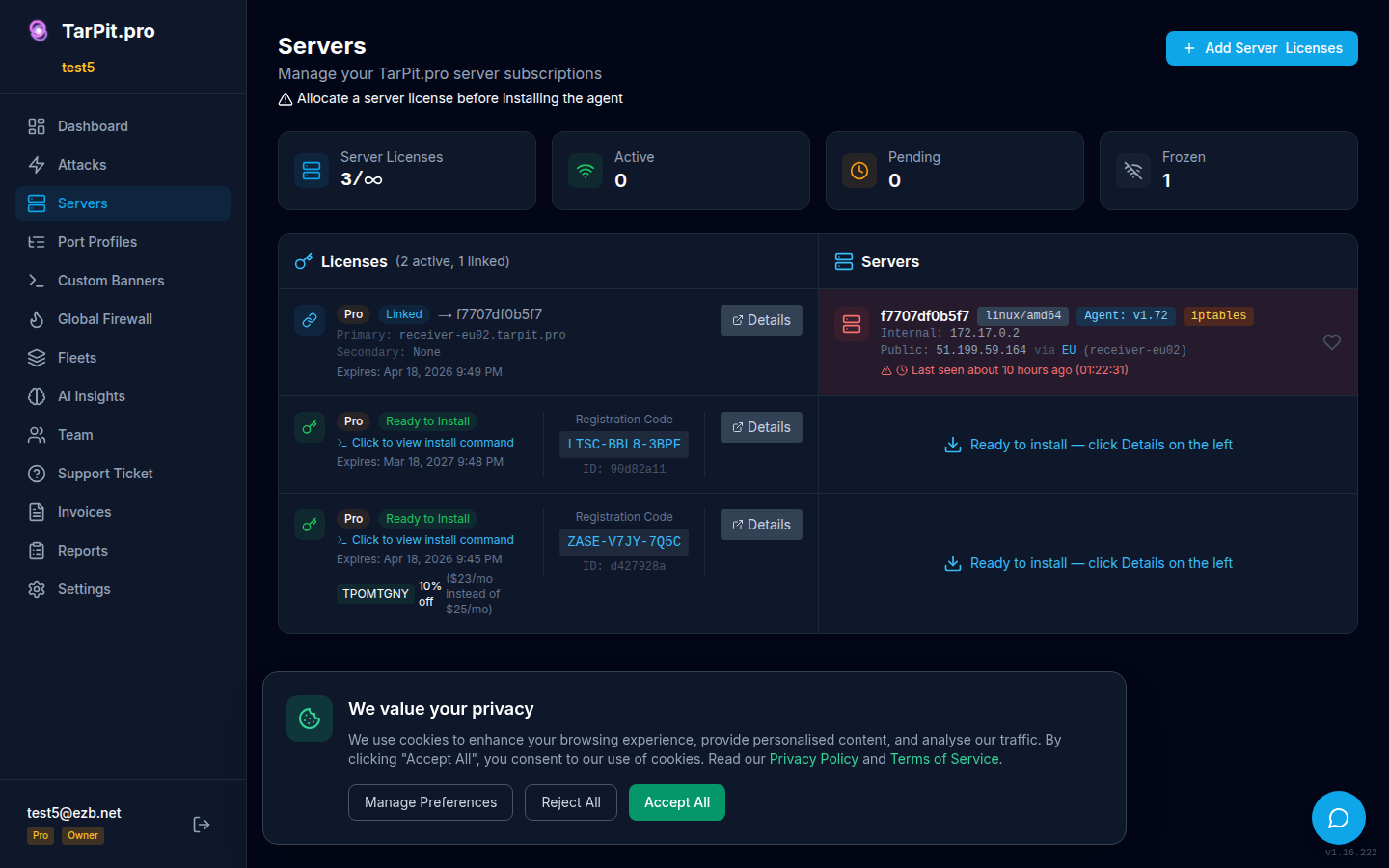
Server list with status, last seen, and attack counts.
Adding a Server
To add a new server, click Add Server in the dashboard. This generates a registration code, a one-time code that links the agent to your account.
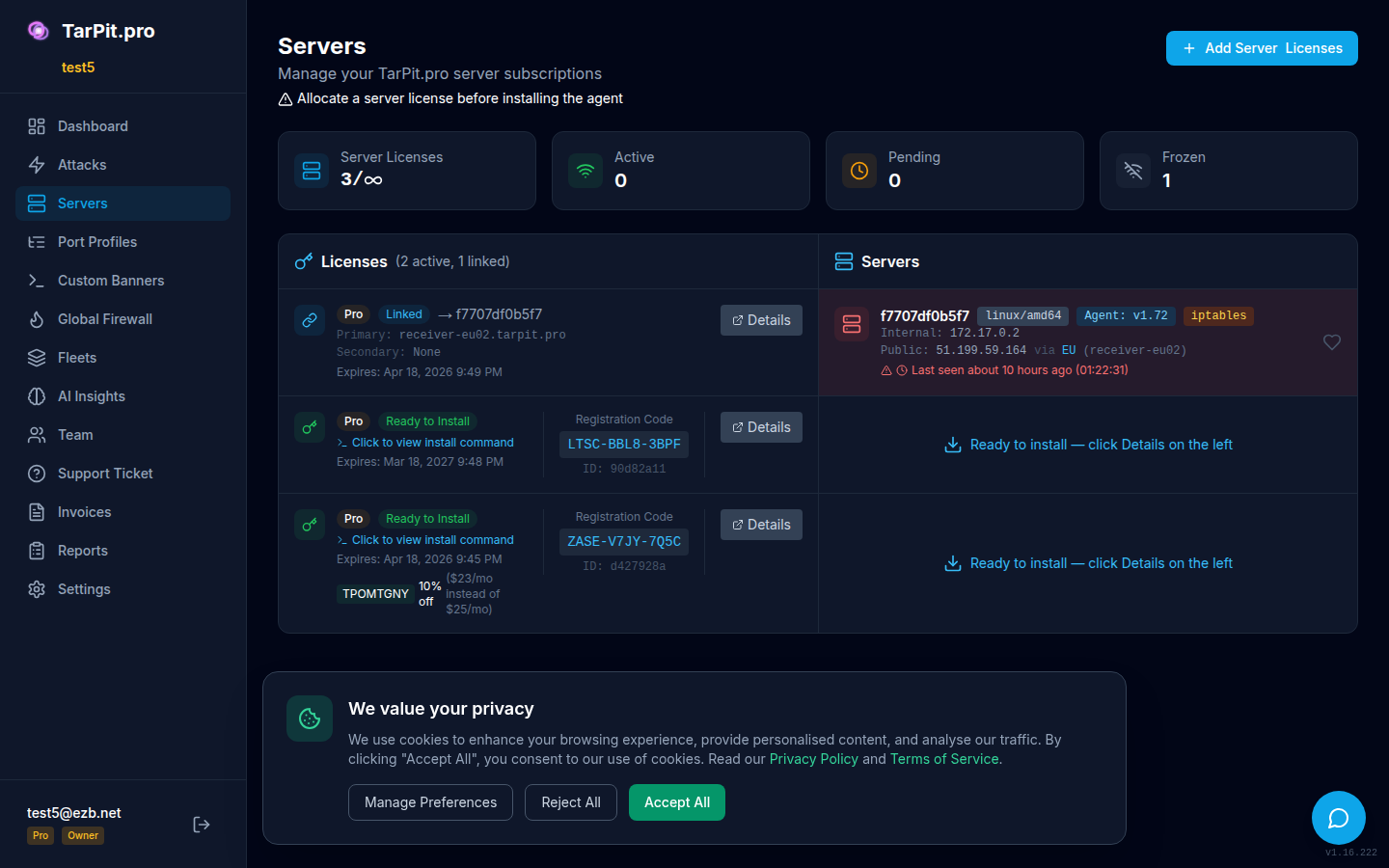
The Add Server dialog generates a one-liner install command.
Copy the provided command and run it on your server. The installer will:
- Download and install the TarPit.pro binary
- Register the agent with your account using the code
- Install and start the system service
- Begin capturing attacks immediately
# One-liner install with registration code
curl -fsSL https://get.tarpit.pro | sudo bash -s -- --code "ABC-DEF-GHI"

# Or if already installed
sudo tarpit-pro init --code "ABC-DEF-GHI"
sudo tarpit-pro service start
Server Details
Click any server to see its details:
- Active honeypot ports and the banners being served
- Operating system, architecture, and agent version
- Public and internal IP addresses
- Uptime and connection status
- Attack statistics for this server
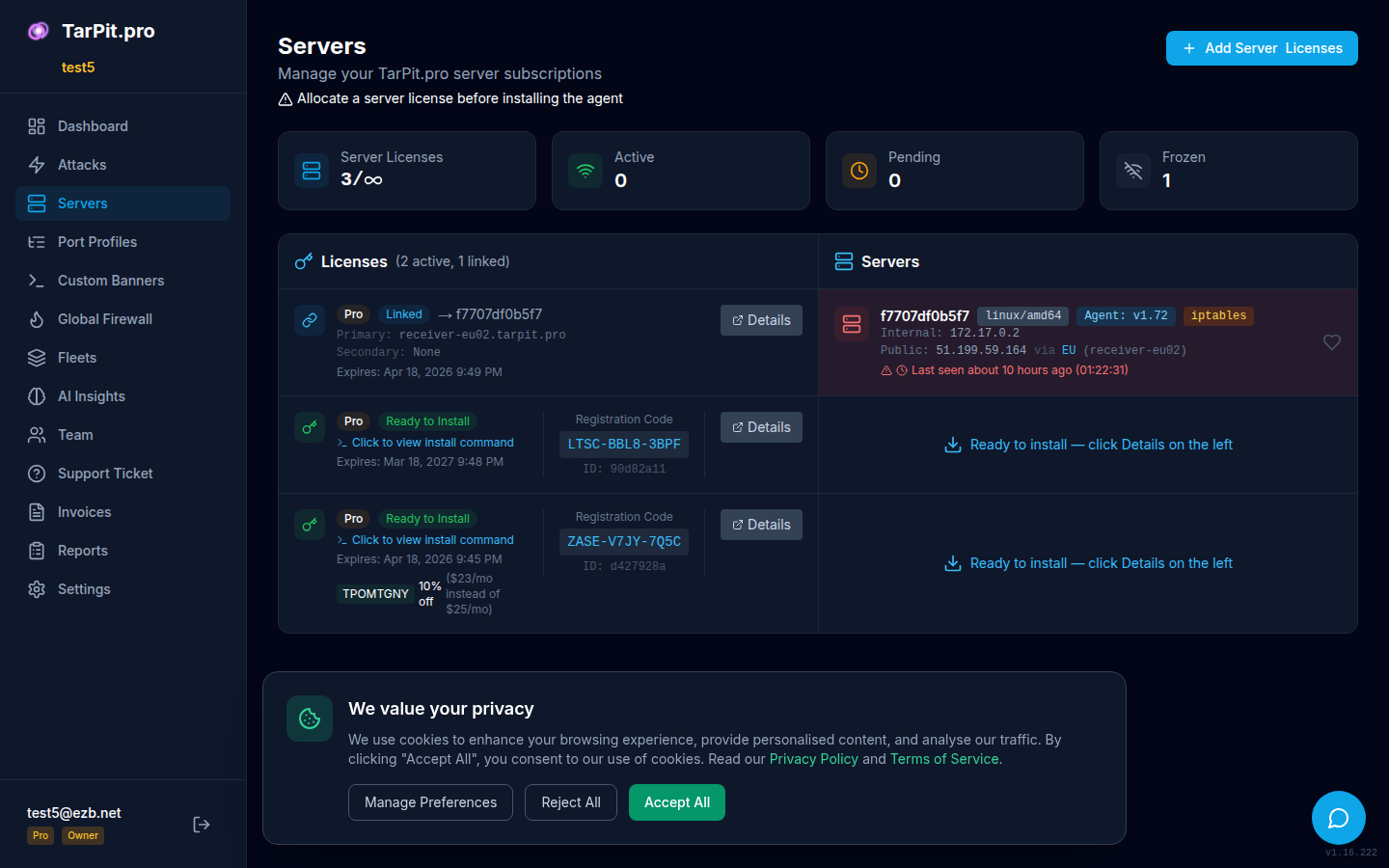
Detailed view showing server configuration and statistics.
Port Profiles
Port profiles let you define reusable sets of honeypot ports and assign them to multiple servers. Instead of configuring ports on each server individually, create a profile and assign it.
Navigate to Port Profiles in the sidebar to create and manage profiles. Each profile defines a list of ports to monitor. Assign a profile to a server, and the agent will automatically update its port configuration on the next heartbeat.
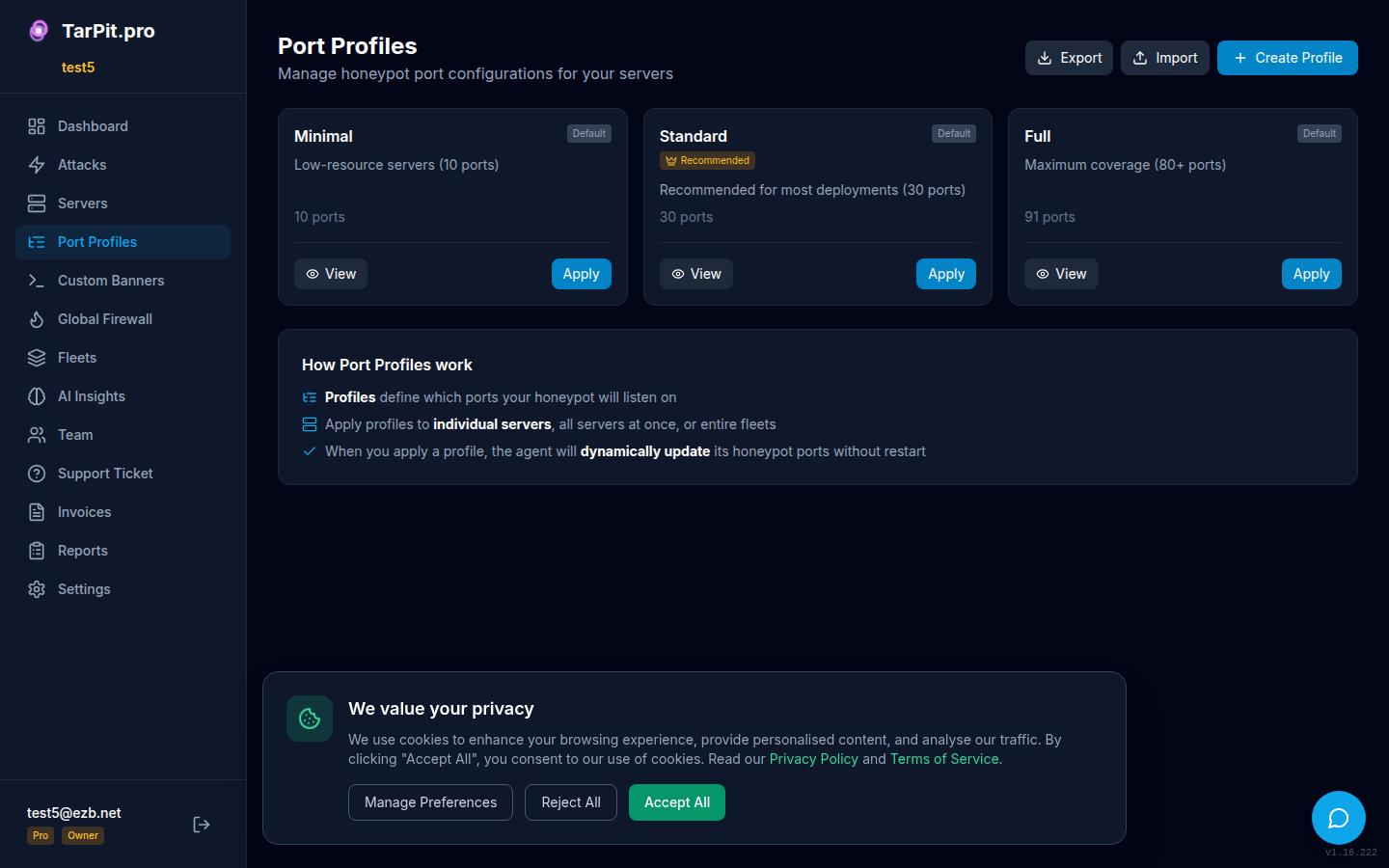
Create and manage port profiles for consistent server configuration.
Removing a Server
To remove a server from your account:
- Go to the server detail page
- Click Remove Server
- Confirm the removal
On the server itself, you can deactivate the agent:
sudo tarpit-pro deactivate
sudo tarpit-pro service stop
Removing a server does not delete its attack history. Historical data is retained according to your tier's retention policy.